FEATURES

Exclusive Original Design

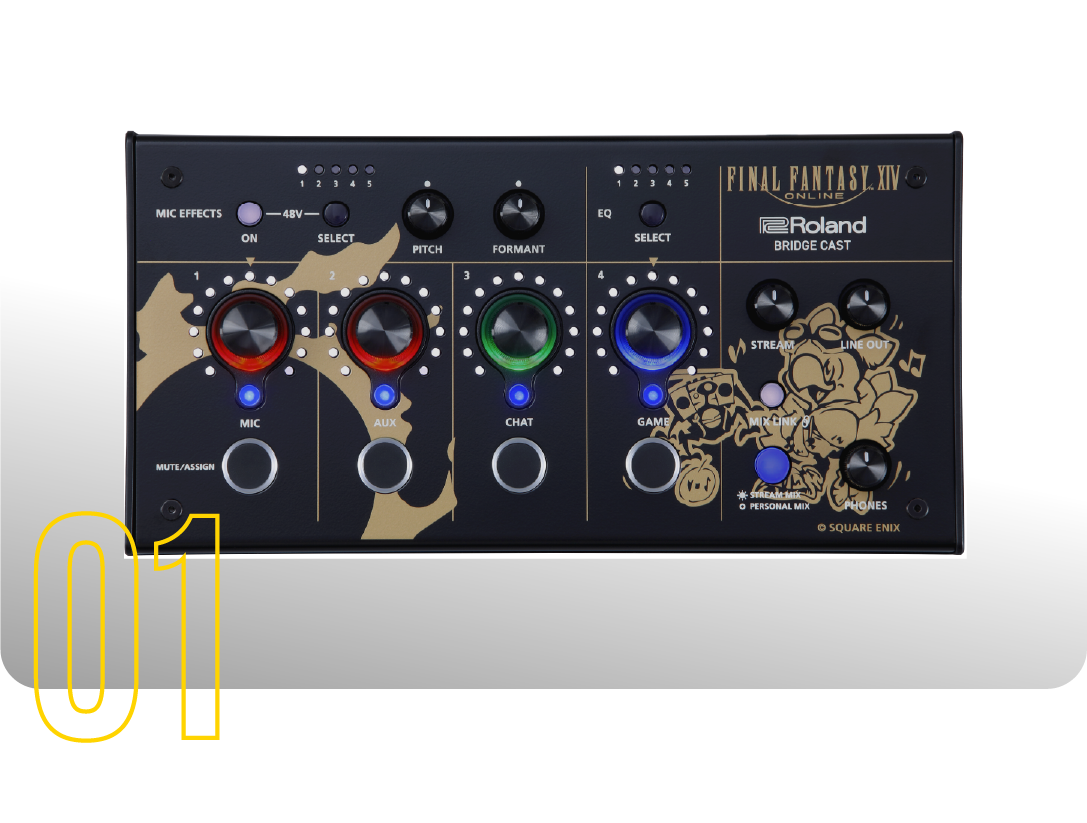
This special edition features exclusive artwork by illustrator and character designer Toshiyuki Itahana, showcasing Alpha (the Chocobo) and Omega, two beloved characters from FINAL FANTASY XIV that are sure to delight fans of the FINAL FANTASY series as a whole. The LED colors for the audio channels are also customized to match the game's role colors: blue for Tanks, green for Healers, and red for DPS. These design touches are sure to enhance the excitement of tackling instance dungeons.
Original Sound Effect

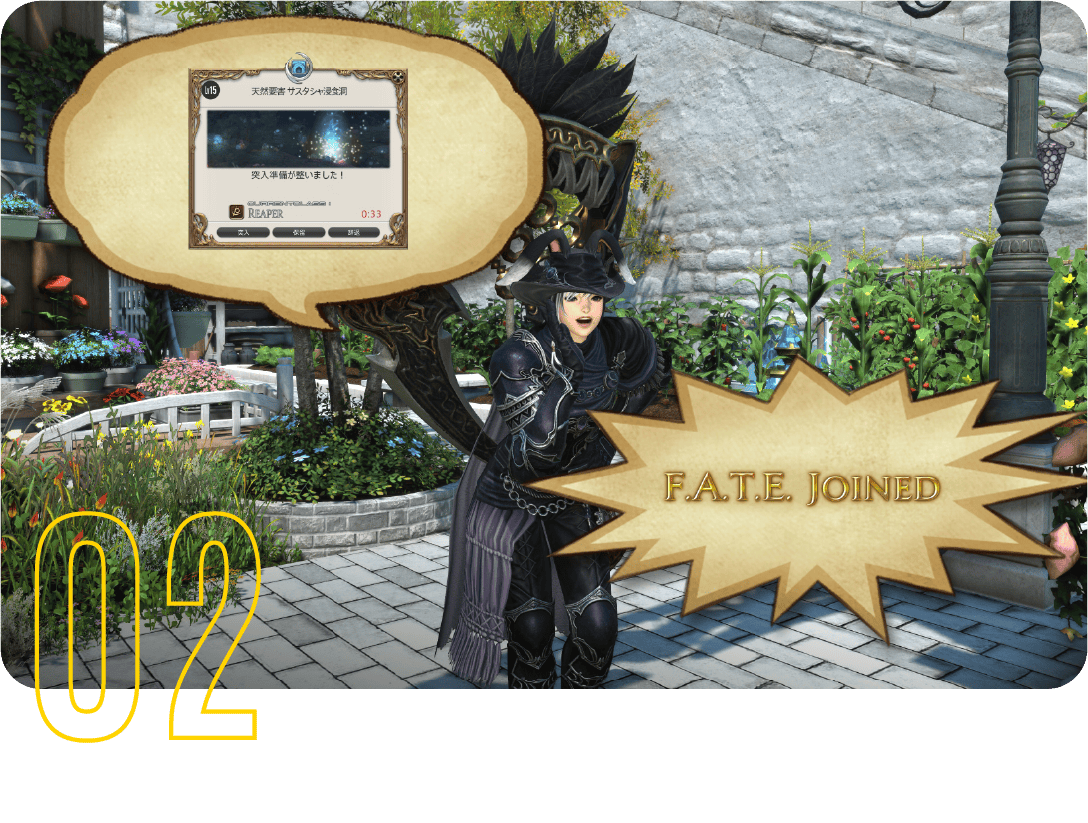
Built-in sound effects help make your voice chats and game streams more engaging. With a single button press, you can play two iconic sounds: the dungeon queue pop sound and the F.A.T.E. start sound. If matchmaking is taking a while during a game stream, just keep hitting the button and keep the conversation going while you wait!
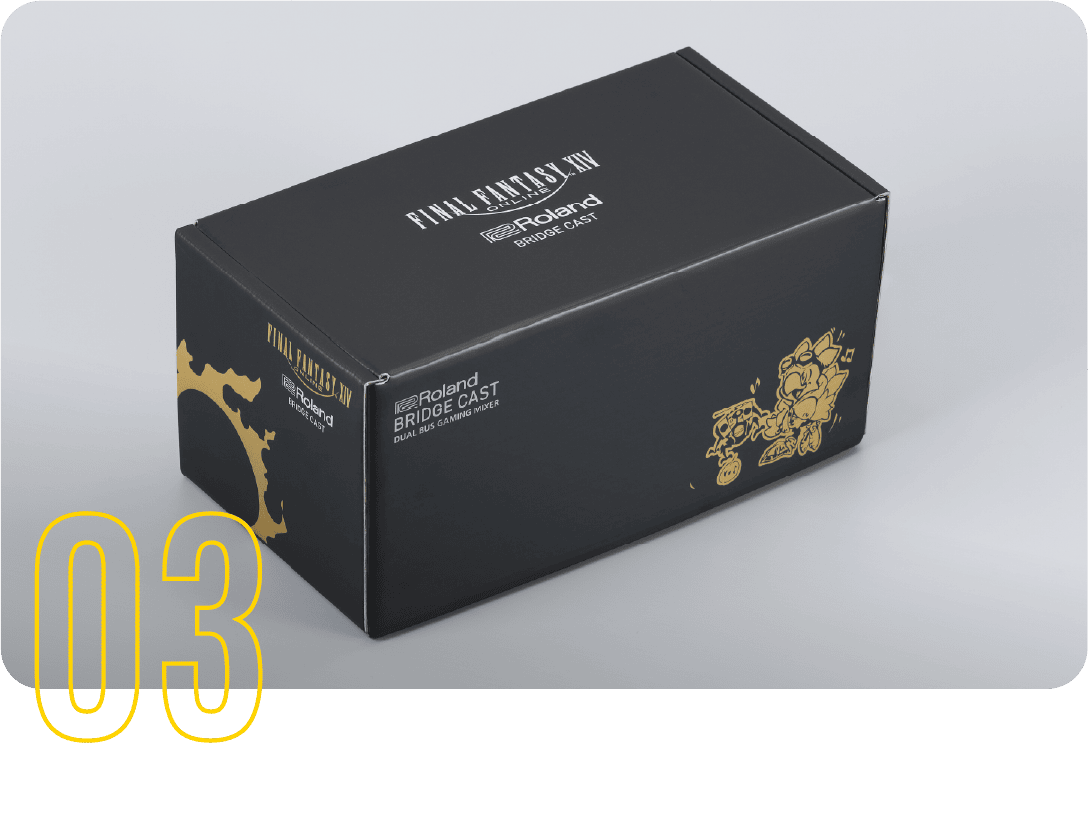
Original Packaging

Featuring exclusive artwork, the streamlined package looks great displayed alongside your FINAL FANTASY XIV collectibles or as part of your gaming setup.
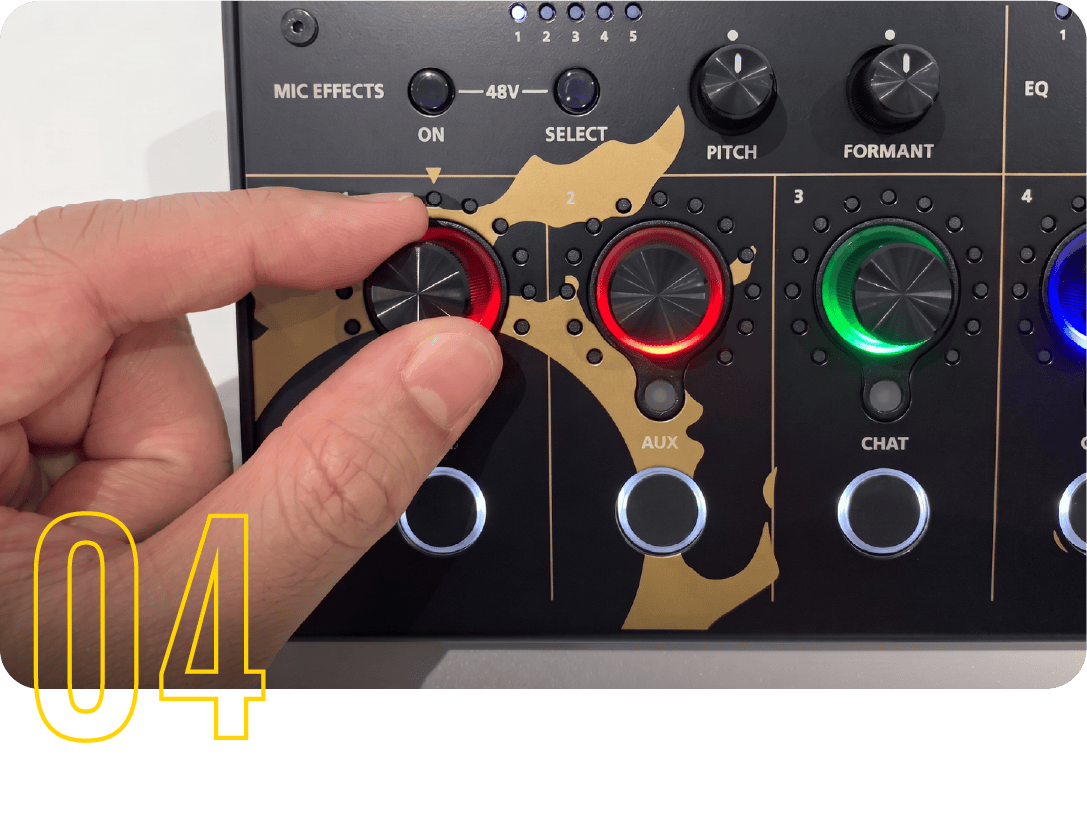
Real-Time Mixing

Assign game audio, voice chat, and microphone levels to dedicated volume knobs for instant, intuitive control during gameplay.
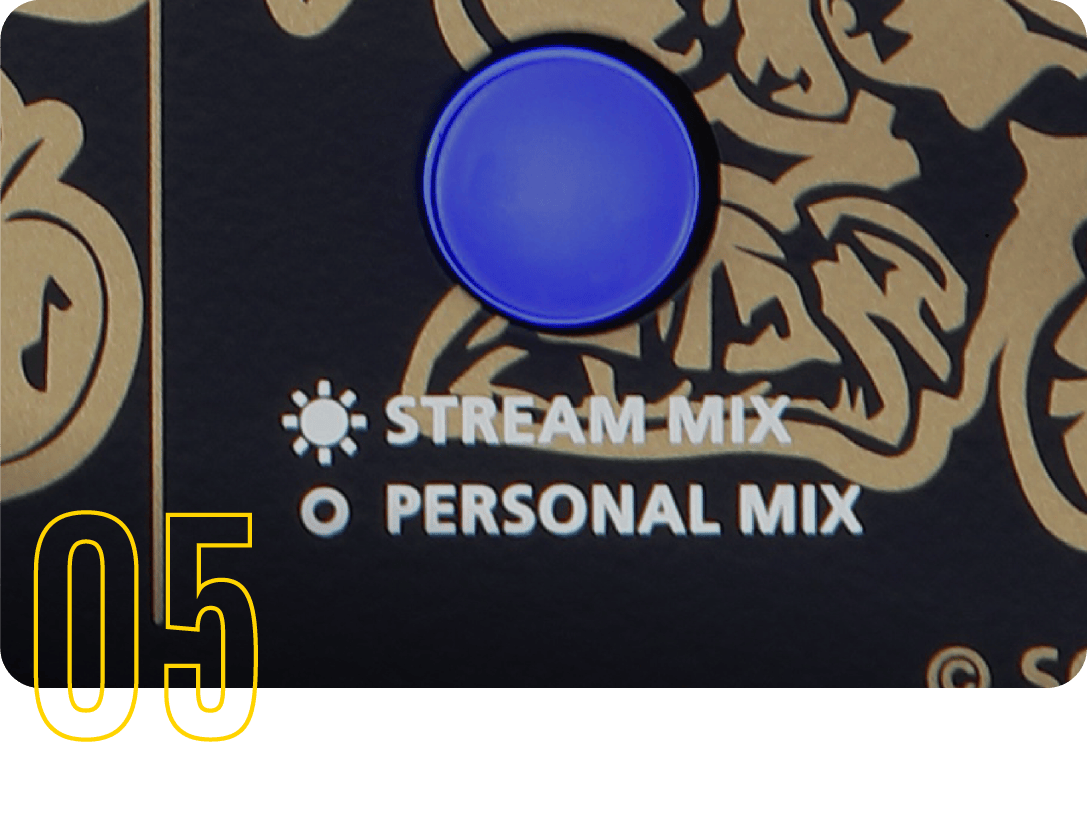
Dual Mix Buses

With two independent sound mixes, you can customize separate audio outputs for your stream and monitoring. Prioritize in-game audio in your monitor mix to stay focused on gameplay, while boosting voice chat levels in the stream mix to make conversations clearer and more engaging for viewers.
Voice Changer

Powered by Roland’s renowned voice transformation technology inherited from the VT Series, the Voice Changer lets you alter the sound of your voice. Adjust both pitch and formant settings to create a voice that matches your in-game character, adding an extra layer of fun and creativity to your streams and voice chats.
High-Performance Mic Preamps

Enjoy clear voice chat with a high-quality microphone connected via XLR. Even low-output dynamic microphones can deliver clear sound thanks to the built-in preamp, which provides up to 75 dB of gain. The unit also supports phantom power for use with condenser microphones. In addition, it features a range of voice enhancement tools, including a low-cut filter, noise suppressor, de-esser, and compressor, allowing you to optimize your audio based on your voice and environment.

Virtual Surround

Powered by Roland's advanced audio technology, Virtual Surround delivers immersive surround sound optimized for stereo speakers and headphones. Enjoy an immersive gaming experience with rich, detailed audio. This feature lets you experience every detail of your game's soundscape.

BENEFITS

Start Streaming Your Gameplay!!

Stream your gameplay with high-quality sound. When using voice chat, you can also adjust the volume of your friends' voices and include them in your stream. Make your streams even more entertaining with the built-in original sound effects!

Take On Challenging Content with Voice Chat

Connect a high-quality microphone and enjoy clear voice chat with your friends. Use the Voice Changer feature to role-play as your favorite character and make your gaming sessions even more fun!

Create an Immersive Gaming Setup!

Add a touch of style to your gaming desk with exclusive original artwork created specially for this edition.

Getting Started

SETUP GUIDE
BASIC

    01.

    Download and Install the App

    Download and install the BRIDGE CAST App from the link below.

    02.

    Install the Driver

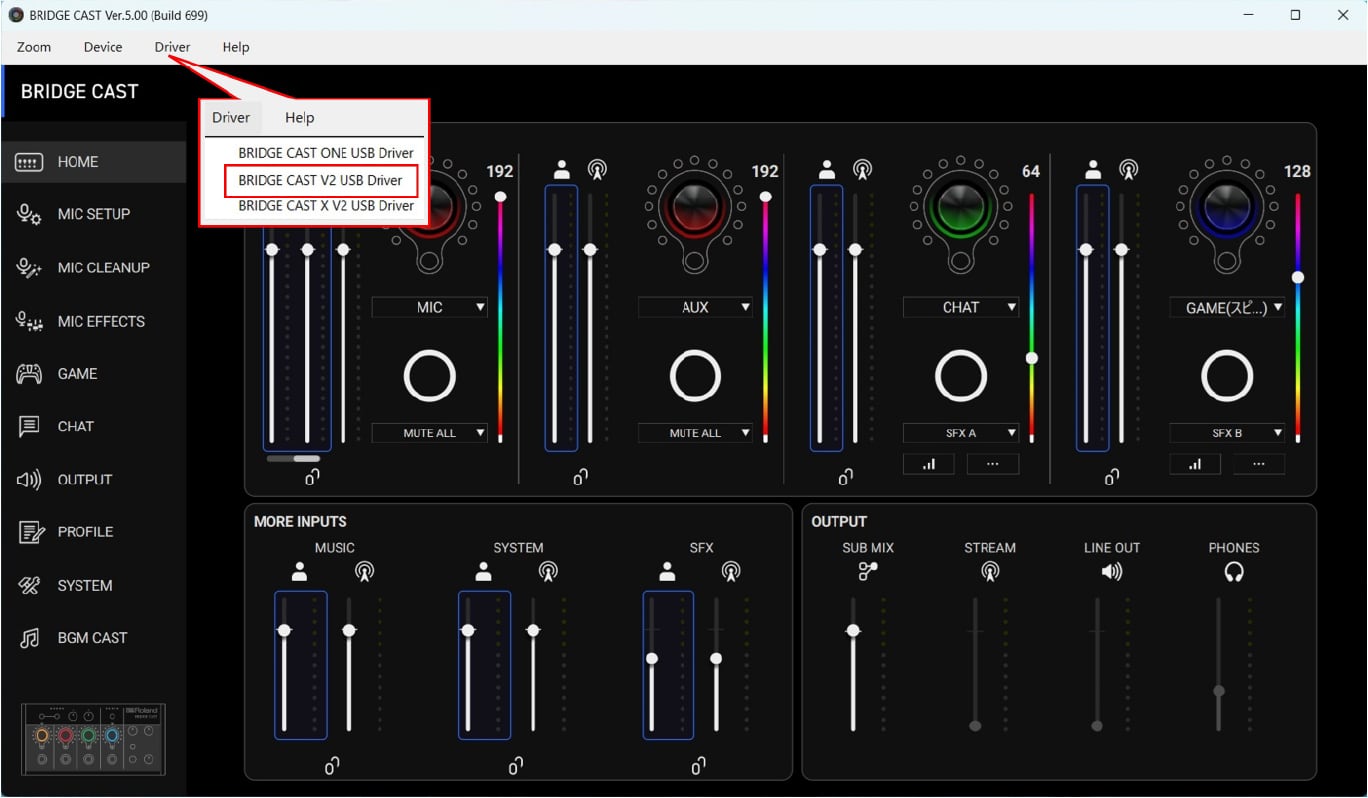
    Launch the BRIDGE CAST App, then select and install the BRIDGE CAST V2 USB Driver.

    Launch the BRIDGE CAST App.

    Install the BRIDGE CAST V2 USB Driver.

    03.

    Connect the BRIDGE CAST FINAL FANTASY XIV Edition to Your PC

    Connect your computer and the BRIDGE CAST using the included USB cable.

    04.

    Configure Virtual Surround

    In Control Panel > Sound, set BRIDGE CAST as your audio output device.

    On the Playback tab, select Speakers (BRIDGE CAST).

    If there is no check mark on the icon, right-click it and select Set as Default Device.

    Once you have confirmed that it is set as the default device, click the Configure button in the lower-left corner.

    Select 7.1 Surround as the speaker configuration. After making your selection, click Next to proceed through the setup screens, then click Finish to complete the configuration.

    Launch the BRIDGE CAST App again and select the GAME tab.

    Turn on the VIRTUAL SURROUND switch.

    05.

    Microphone Connection and Setup

    Connect a microphone to the XLR connector.

    Launch the BRIDGE CAST App and select the MIC SETUP tab.

    Select the type of microphone you have connected. While speaking into the microphone, adjust the GAIN slider so that the level meter remains within the blue zone.

    Select the MIC CLEANUP tab in the BRIDGE CAST App.

    Scroll down to the EQ section and display the frequency response of your voice. While viewing your voice's frequency response in the EQ section, we recommend cutting unwanted low frequencies. Enable LOW CUT and set the cutoff frequency. If your voice sounds unnatural when monitored through Side Tone, try adjusting the cutoff frequency. Applying a LOW CUT can help reduce unwanted background noise.

    *Other Recommended Settings*
    NOISE SUPPRESSOR and EXPANDER
    Sounds below the specified LEVEL are reduced further, making it easier to eliminate background hiss and white noise.
    COMPRESSOR
    Narrows the dynamic range of your voice. Loud sounds are reduced in volume, while quieter sounds are boosted, making your voice easier for listeners to hear.

    06.

    Assign FINAL FANTASY XIV and Voice Chat App Audio to Volume Knobs

    Open the system Volume Mixer and assign each application's output device to map it to the corresponding knob. Configure the output devices as shown in the illustration above.

    For the voice chat app's input device, select the option that matches the audio you want to send to other participants.

    MIC (BRIDGE CAST V2): Sends only your microphone audio to the voice chat application.

    STREAM (BRIDGE CAST V2): Sends the audio mixed in the STREAM MIX to the voice chat application. Select this option if you would like to share sound effects through voice chat.

    07.

    Configure Your Voice Chat Application

    Set the input and output devices in your voice chat application to match the settings configured in Step 06.

SETUP GUIDE
PRACTICAL USE

    If you would like to output audio through your existing wireless headphones or earbuds, or through your favorite DAC or amplifier, you can configure BRIDGE CAST audio to be monitored through those audio devices.

    01.

    Configure Monitoring Settings in Control Panel

    Open Control Panel and configure the recording device settings.

    On the Recording tab, select SUB MIX (BRIDGE CAST).

    Once you have confirmed that it is selected, click the Properties button in the lower-right corner.

    Check the Listen to this device option and select the device you would like to use for playback. This setting allows you to listen to the audio output from the BRIDGE CAST FINAL FANTASY XIV Edition through another audio output device.

    If the output device is connected wirelessly, audio latency may occur.

PRODUCTS

BRIDGE CAST

BRIDGE CAST ONE

BRIDGE CAST X